Copy Panopto video between Canvas subjects
- Go to the topic in Canvas where the video is published and select the Panopto Video tool.
- Hover over the video you want to copy so that menu selections are visible. Press Settings.
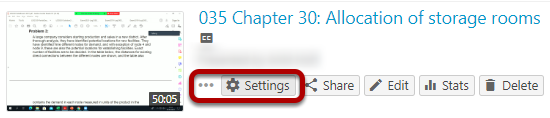
Inside the video settings:
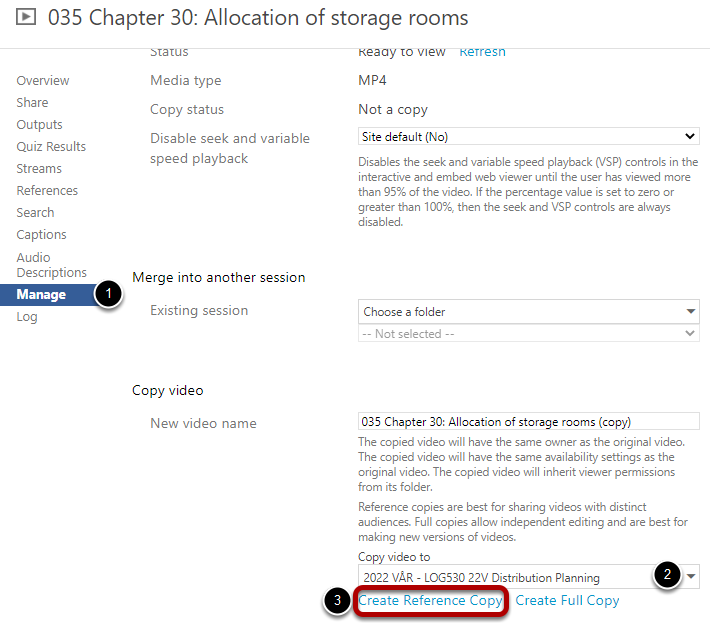
- Select Manage in the menu list on the left. A little down the page you will find options related to copying the video (Copy video).
- Select the Canvas topic you want to copy the video to, then press Create Reference Copy.
Add video to a module
Items you can use to add a Panopto video to a module:
- External tool: This may be the best choice, and you can make some adjustments to the video with options found under "Video Embed Options".
- External URL: Note that it may be an advantage to uncheck "Load in new tab" when adding the link.
- Students get full screen view in new tab. Alternatively, they can click on the title above the video inside the Canvas window, if you as a teacher do not make the choice in advance.
- Any problems related to Panopto requiring third-party cookies to be accepted in the browser are avoided for the students.
- Page: You can embed video with playback window (embed) on a page. This may be relevant if you want to write some text along with the video.
Add video with playback window (embed)
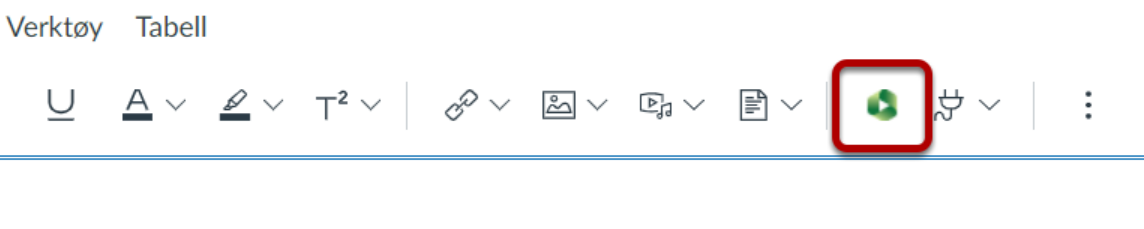
You can embed video with playback window (embed) on a page or in an announcement. In the text editor, there is a separate icon for Panopto Video:
Upload video in Canvas (Panopto Video)
In the Panopto Video tool, you can upload videos you have created, such as footage from Zoom, to a Canvas topic:
.png)
Go to the topic in Canvas, select Panopto Video [1] in the tool menu on the left, click on Create [2] and select Upload media [3].
Can Panopto videos be downloaded from Canvas?
By default in Panopto, videos are set that cannot be downloaded by students or other people who do not have teaching privileges in a subject.
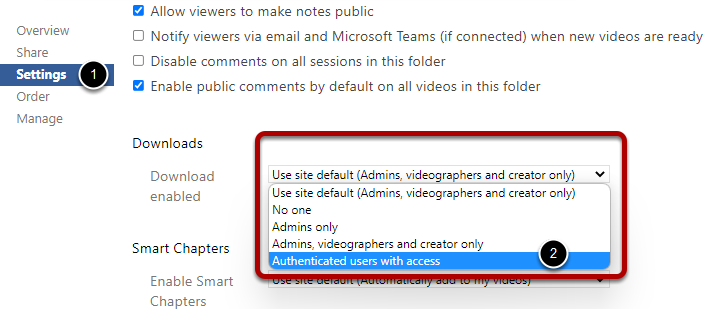
If you want to allow download for students, you can do so via the settings of the Panopto folder in the course:
- Go to the course in Canvas and select the Panopto Video tool.
- Click the settings icon for the folder (gear) in the upper right.
- Select Settings and then Authenticated users with access.