Canvas guidance for students and teachers
Here you will find frequently asked questions and answers. Feel free to contact us, canvas@himolde.no, if you have feedback or need help regarding Canvas.
Frequently asked questions about Canvas
Change language
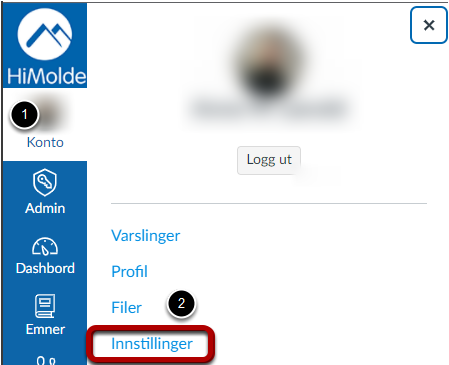
To change the language of your Canvas account you have to login to the website. This cannot be done in the Canvas mobile app. Settings on the website:
- Pick Konto (In the blue global menu to the left), then Innstillinger
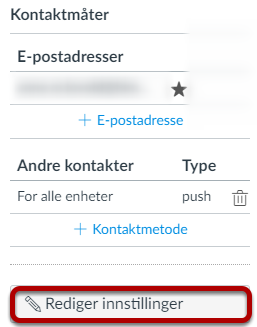
- Click the button Rediger innstillinger in the right column
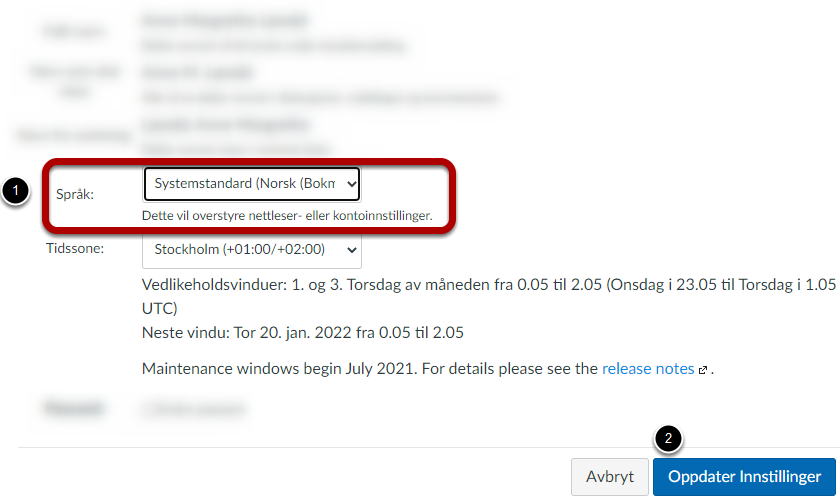
- Select your preferred language in Språk, then click the button Oppdater Innstillinger
Access to previous courses
After transitioning to a new semester we archive old courses which were completed the previous semester. They are no longer active and visible on the Dashboard, but you will still have read-only access to your previous courses in your course list. Menu choices in browser:
- Courses
- All Courses
Manglende navigasjonsmeny med Moduler i emner
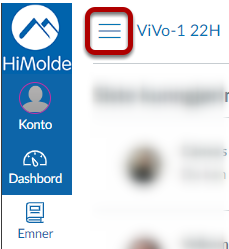
Hvis du ikke ser navigasjonsmenyen til venstre i emner, er den mest sannsynlig blitt skjult. Det er en knapp i emner hvor du kan velge å skjule/vise denne menyen:
- Gå til et av dine emner
- Klikk på knappen for å skjule/vise verktøymenyen (tre linjer) helt oppe til venstre i emnet.
I do not see my active courses on Dashboard - Change Dashboard view
If you cannot see your active courses on the Dashboard, a possible solution might be to change the Dashboard View. In a web browser you can change it in the menu in the upper right (3 dots).
"Card View" is the view that show your courses.
You can also find your courses in the course list. Menu choise in browser: Courses (in the blue global menu to the left).
How to customize notifications from Canvas
You can customize what elements in Canvas you want notifications for, both to your E-mail and push-alerts (if you use the Canvas-app).
Browser
In browser you can change your notifications using the menu options Account > Notifications. At the top you will find a description of the icons that can be chosen if you want notifications:
- Immediately
- Send daily summary (Only to E-mail)
- Weekly (Only to E-mail)
- Do not send me anything
Every element that can be notified have its own row down the site, to the right there are columns for mail-address (and push-alerts).
The App
You can disable and enable push-alerts for every individual element. Go to the menu in the upper left, select Settings then Push-notifications.
Customizing notifications per course
In browser you can customize notifications per course. Go to course, select View course notifications to the right on the page.
Setting notifications on courses will overwrite notifications set on account-level.
Issue accessing videos in Canvas (Panopto)
Most videos in Canvas are uploaded through the integration with our video service Panopto.
- Click one on "panopto Video" in the Canvas-course's left column to activate your panopto account. Try watching the video again.
- Panopto requires your browser to allow third party cookies. See guide on how to enable third part cookies (panopto.com)