Get started for employees

The Teams app should be installed on your HiMolde PC, and you can find it via the start menu or taskbar. Contact IT support if you cannot find Teams on your PC.
- Make sure the Teams app (on your PC) is connected to "Molde University College" (top right corner in Teams). If you are connected to another organization/tenant you will not receive phone calls.
If you need to be connected to another organization, you can do so via the Teams web client.
You can also use Teams on your mobile or the web:
- Download Teams from Microsoft for iOS or Android
- Teams web client: https://teams.microsoft.com
Video turorials
Getting started for students
- Download Teams from Microsoft for iOS or Android
- Teams web client: https://teams.microsoft.com
Phone - Calls in Teams
Menu options for calling via the desktop app/PC:
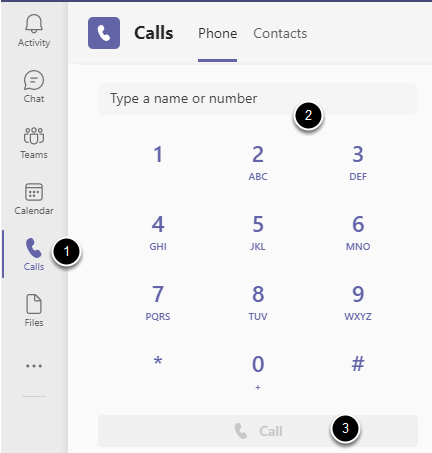
Select Calls [1] on the left in Teams, enter the name or number [2] and click the Call button [3]
In the mobile app, you can make calls via the Call menu option.
Configure audio devices
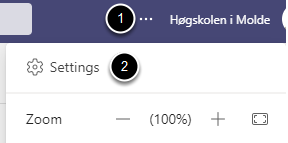
Click the menu (three dots) in the top right [1] , then Settings [2]
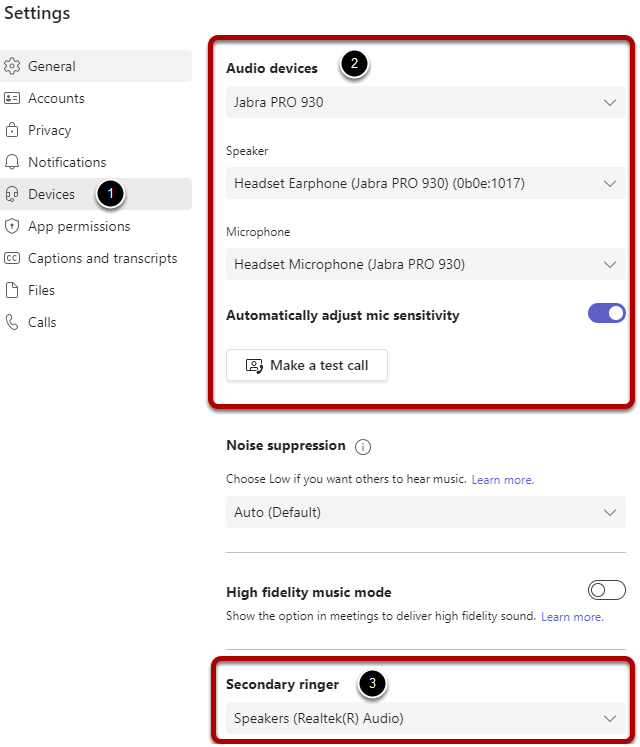
Select Devices [1] and then you will find options for audio devices [2]. In the screen above, headset is selected, for both speaker function and microphone. You also have the option to make a test call, to check that the audio devices are working as desired.
If you want the speakerphone to ring for incoming calls, you can select it under Secondary ringer [3].
Automatic start of Teams
If Teams doesn't start automatically when you start your PC, you can set it in the Teams settings:
Click the menu (three dots) in the top right [1] , then Settings [2]
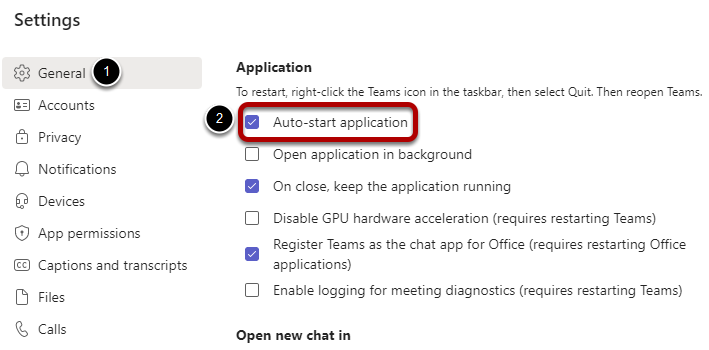
Select General [1] and a little further down this page you can uncheck the box for Auto-start the application [2]
List view of teams for clearer navigation
There are two views you can choose from to navigate between teams, "Grid" and "List". Most people find the "List" view to be more intuitive, which you can select via the settings in Teams:
Click the menu (three dots) in the top right [1] , then Settings [2]
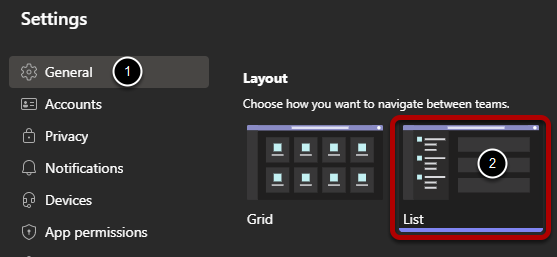
Select General [1] and then tap "List" under Layout [2]
Microsoft Education and Teams in Canvas
In Canvas, Microsoft Education is integrated as a tool in courses. Microsoft Education includes Teams, and teachers can create a team with members synced from Canvas to Teams.
Teachers can also set up Microsoft Education for a group created in a Canvas course. A team will automatically be created for the group and should not be deleted.
If you as a student have not been given access to a team created from Canvas, you can go to the course in Canvas and then select Microsoft Education.
Privacy
- General privacy guidelines for digital education (content in Norwegian)