What can I use Panopto for?
- Recordings on your own PC/Mac
- Publish existing video and audio files
- Publish webmeetings from Zoom
- Podcasts
- Streaming og recordings in classrooms
- Simple video editing
- Create a video-quiz
- Students can hand in their own videoproductions
See a 3-minute walktrhough of Panopto for education from panopto.com
Streaming and recording in classrooms
- Students: You can view Panopto videos through Canvas using the "Panopto Video" tool. Note that the streaming of a teaching session does not become visible before the session starts.
- Teachers: You can plan streaming and recordings through Canvas using the "Planlegg streaming og opptak" tool.
Classrooms with a Panopto recorder
- Molde, building A: All classroms
- Molde, building B: All classrooms. Except B-352, which is a temporary classroom during the rehabilitation of building A.
- Kristiansund: All classroms
During the rehabilitation of building A in Molde, barracks with classrooms have been set up. In the barracks, there is a recorder in all classrooms except M-102.
Order streaming & recordings in classrooms
You as a teacher can order streaming and recording of the lecture via Canvas:
- The first time you visit the topic, you may first need to click on the Panopto Video tool.
- Go to the relevant topic and select Planlegg streaming og opptak (in the tool menu on the left)..
- The timetable for the course is loaded. You can now schedule streaming and / or recordings of one or more teaching sessions. Note that if the course is taught in both Molde and Kristiansund, then the timetable for both campuses will be displayed, so make sure to plan your recordings in the correct room (campus).
- Click Schedule to order streaming and recording. A video file is created for each lesson (45 min), followed by a 15 minute break. A lecture of three hours will consist of three recordings (standard setting). Start and end follow the times in the timetable.
- For more choices, click the three dots on the right. Here you can e.g. add 5 minutes extra recording time, or turn off live streaming. Remember to save.
- If you want to cancel a scheduled recording, press Cancel.
Students can watch streaming via the course tool Panopto Video, and here you and the students will also find recordings when it is finished. Note that the streaming of a teaching session does not become visible before the session starts.
More about Panopto in Canvas for teachers
Read more about Panopto in Canvas for teachers
Record on your own PC/Mac
You can create recordings in Panopto using Panopto Capture (browser).
Editing
Trimming video in Panopto
You can perform simple editing tasks in Panopto such as removing parts of the video or insert parts from other videos.
You can read about video trimming here!!!Need translation!!!.
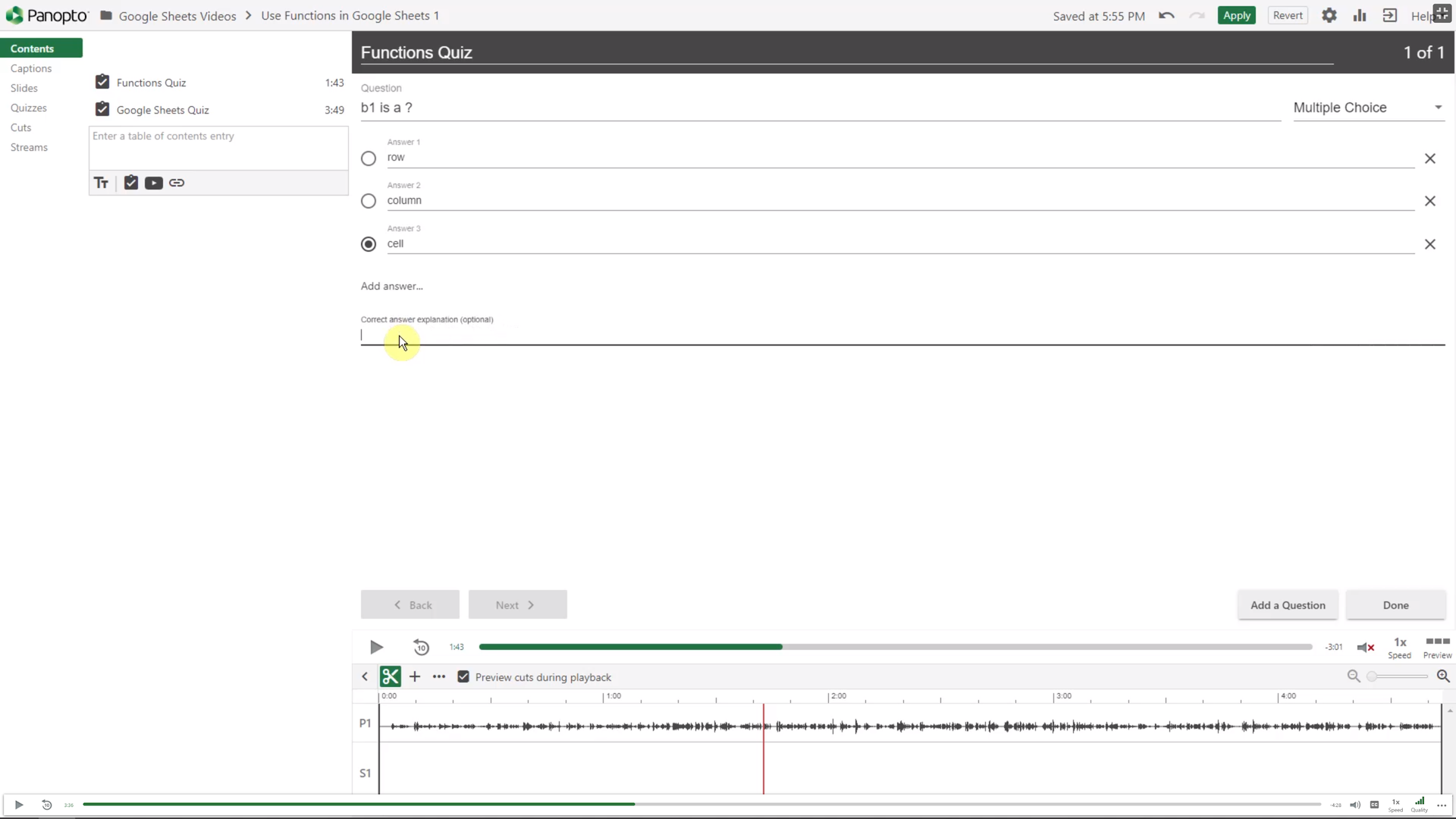
Panopto videoquiz
You can add questions in your Panopto videos. You can choose between Multiple Choice, True/False, Multiple Select, or Fill In the Blank. The video will stop when the viewer reaches the point where a quiz is applied and have to answer it before the video continues.
View a video about the quiz feature here.
Embed YouTube video in a Panopto video
You can embed content from YouTube in Panopto video. Note that the viewer must use the main playback windows in Panopto to view embedded YouTube content.
You can view the instructional video from Panopto here.
Publish PDF as attachment in Panopto video
It is possible to upload a PDF file the students can view at the same time as the video.
You can view the instructional video from Panopto here.
Uploading files from other sources
You can upload audio and video for easy publishing in Panopto. The platform supports most filetypes and will automatically convert the files to a web format. The maximum resolution is set to 1080P (Full HD) video. You can still upload 4K content but it will be downscaled to 1080P.
Support
If you have any questions or require training, contact us at IT support / +4771214175.