Sign in to Microsoft 365 apps
- Sign in to Microsoft 365 apps using username@himolde.no
- Click the Install apps button in the top-right corner, then select Microsoft 365 apps
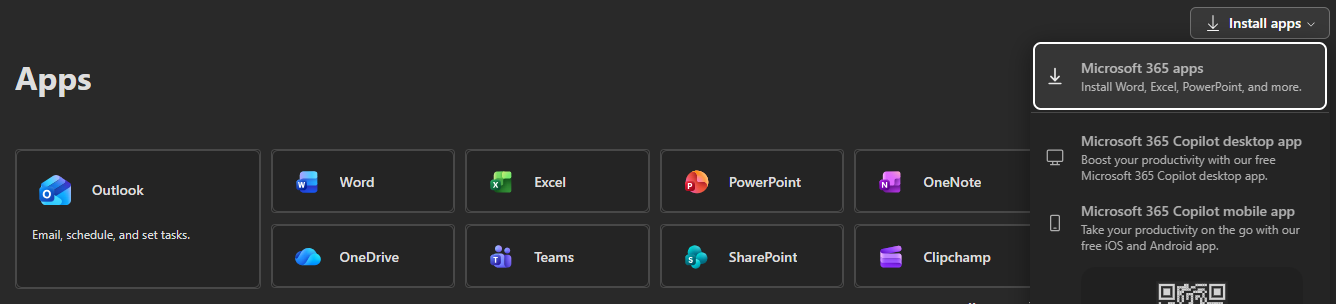
- Select View apps and devices
A new window will open where you can download Office.
If you have a license for Microsoft Project, you will also see this app, but Project is not available for macOS. You can use Project via Remote Desktop.
Download and install Office
- Click the button to download Office
- After the installation file "Microsoft_365....._installer.pkg" has been downloaded: Double-click it to start the installation
- Continue the installation, and during the process you must:
- accept the license agreement
- select Install for all users of this computer
- Complete the installation by clicking Install
- When Microsoft 365 apps have finished installing, you can click the Move to Trash button
Note that the installation language of Microsoft 365 apps follows the language setting of MacOS.