NB! FOOD AND DRINKS ARE NOT ALLOWED
- Turn on the audio mixer by pressing the red power button on the back to the right of the mixer.
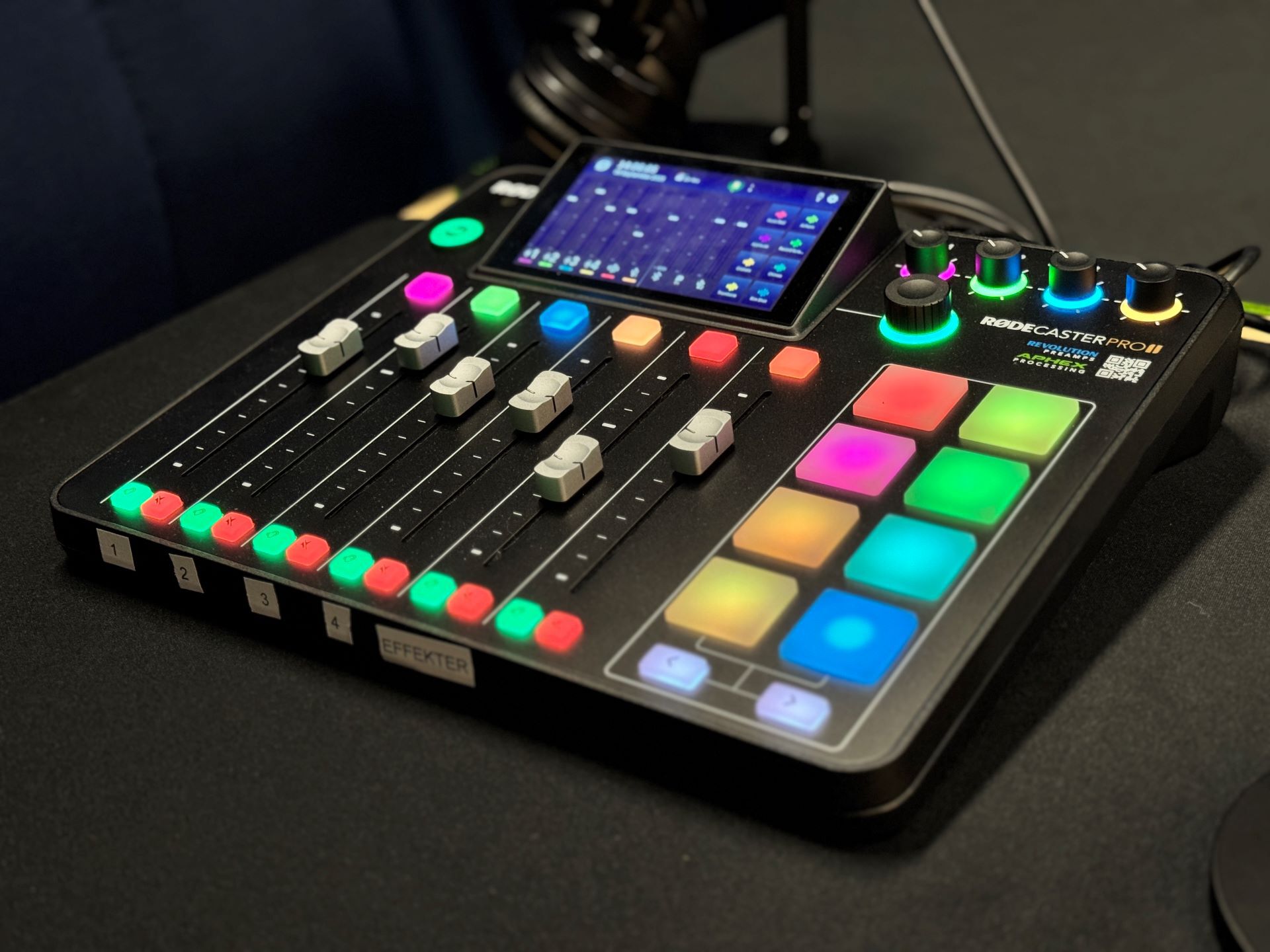
- Put on headsets that belongs to your position. The microphones and headsets are marked from 1-4, as are the sound levers at the bottom of the mixer.
Raise the audio faders for the microphones you will be using and stop the slightly thicker line, about 70% up. Make sure everyone is sitting close to the microphone to ensure a good recording.
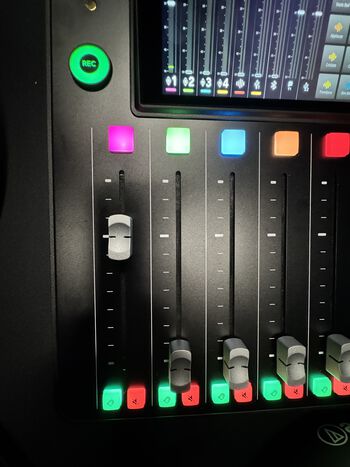
Do a conversation test where you observe the audio level of each microphone on the screen. It is important that the audio input is even between all participants. When a person is talking, the green/yellow bar should hit about 15 or slightly above. If someone is speaking softly, make sure they are close to the microphone and adjust the volume fader upwards until the volume of normal speech is at 15. If someone has a powerful voice and speaks loudly, you can pull the fader down slightly until it hits about 15. The key is for everyone to be recorded at the same level.
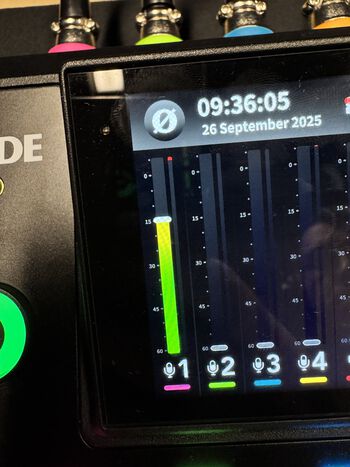
- It is recommended to a test recording to check the audio balance. Press REC to start recording on the mixer. Hold down the REC button to stop recording.
- To listen to the recorded audio, you can tap on the round logo in the top left corner of the screen (Ø), then tap Recordings and listen to the top recording.
When you have finished recording your podcast, connect the USB-C cable to your PC/tablet/phone, etc. Tap the Memory Card symbol at the top of the screen (to the right of the clock) and select Transfer Mode. The RODECASTER shows up as a USB device on your machine. Locate the Recordings folder and copy the podcast to your own computer. Turn off Transfer Mode before unplugging the USB cable.
.jpg?alt=thumbnail)
- Turn off the mixer at the end of use and pull down all the sound levers. Make sure the studio is tidy and turn off the lights.
External guest – Audio only (Teams, zoom, phone etc)
Connect the USB Chat 1 cable to your computer. Select RODECaster Pro 2 Chat as both speaker and microphone in Teams/Zoom etc.
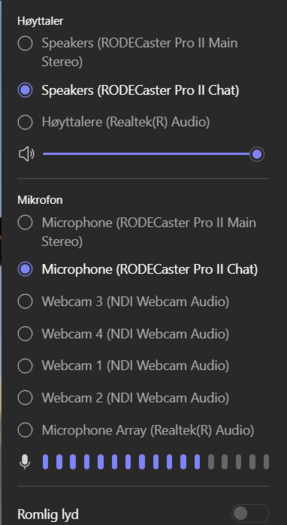
To prevent other notifications from your computer from appearing on the recording, press the speaker symbol in the lower-right corner of your computer, press the button to the right of volume adjustment, and select the built in Speakers. Do NOT select Rødecaster speakers. Lower the volume on your computer or press mute.
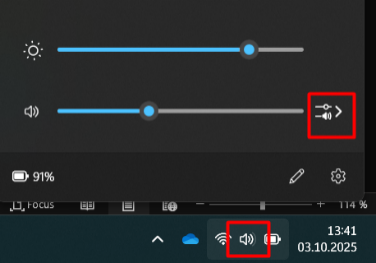
- Raise the USB 1 Chat fader on the audio mixer and adjust to the volume while the guest is chatting until the sound from the studio microphones is even and the green line hits 15 (refer to point 4).
There will be continuous improvements to the rooms and equipment. If you want help with editing or publication, please contact us by email below. HiMolde have services for employees to publish on Apple Podcast, Spotify etc.
There are several options with this equipment, if you need assistance, advice or help, contact the IT center and send an email to georg.kvalsvik@himolde.no@

- georg.kvalsvik@himolde.no
- Phone
- +47 71 19 57 38