Instructions for handing in assignments in WISEflow
- Log into WISEflow to find the exam question set.
- For home exams, the flow type FLOWassign is normally used. There, you must submit a main document, which must be a PDF file. You can also attach additional files if necessary.
Under the "Participation" tab, you will find the exams you are registered for. Click on the timeline/box for the exam you want to submit.
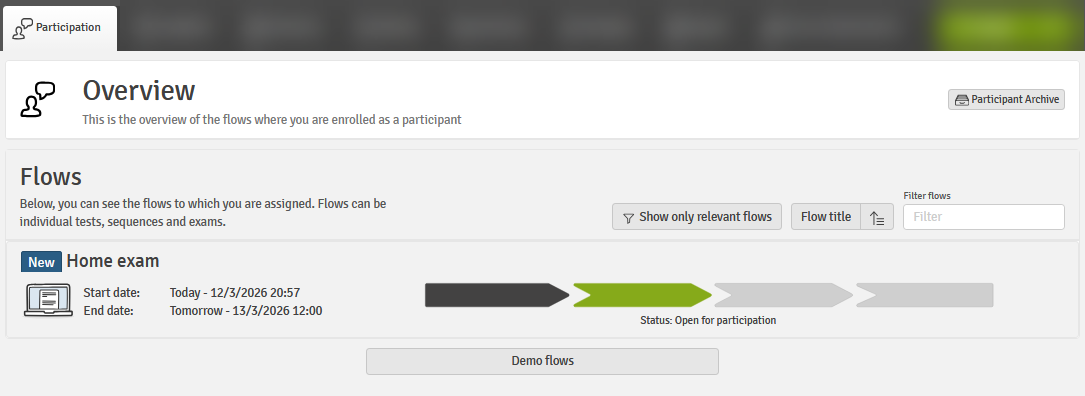
The screenshot shows where to find your active home exam. Click in the box with arrows to open the flow.
When the exam is open for submission, this will be indicated with a green arrow. After you have opened the active flow, an overview page will appear showing relevant information and the exam assignment.
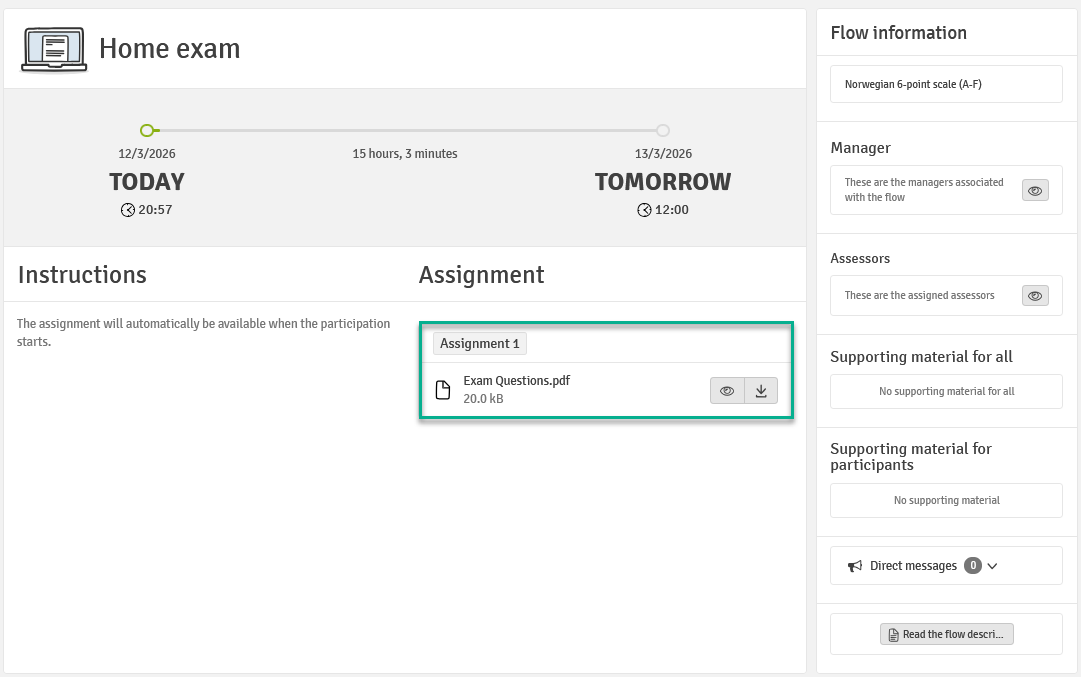
The screenshot shows an overview of the information you get when you open the exam/flow. You will find the exam questions under Assignment, the field marked with a green rectangle.
How to upload files and submit the exam
At the bottom of the page, you will find the option to upload your exam submission and any attachments/appendix material. Check that you have uploaded the correct file. Fill in the cover sheet if this is required and submit your work by clicking Click here to submit.
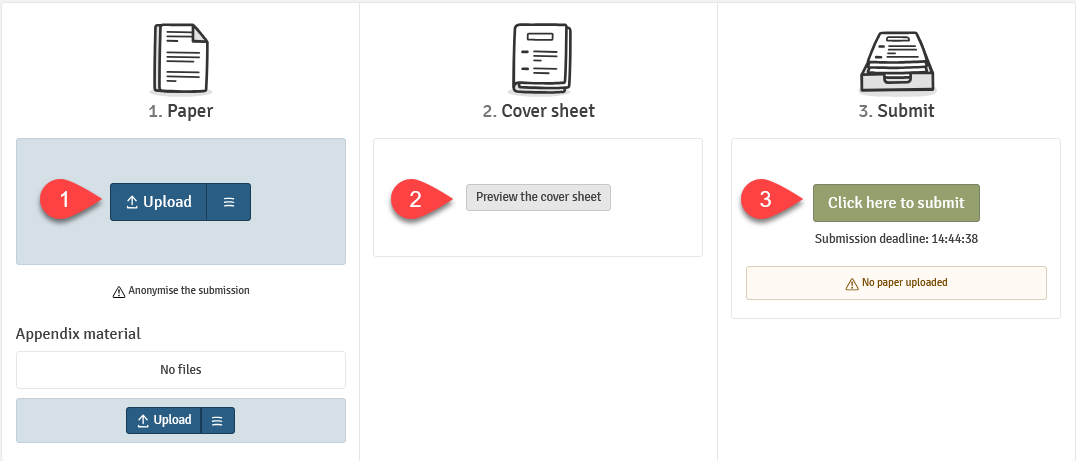
The screenshot shows three steps you must complete to submit a home exam: upload, fill in the cover sheet, and click Click here to submit.
Receipt
You can choose to send a receipt of your submitted answer to yourself by email. The file will automatically be sent for grading when the deadline has passed. After you have submitted the exam, you can choose to send a receipt to yourself.
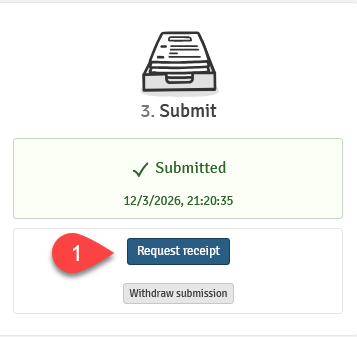
File format
Usually, only one PDF file is allowed for submission. If attachments are allowed, this will be stated in the exam assignment.
Make sure that the files are correctly converted to PDF to avoid uploading an invalid file.
Converting a file from Word to PDF:
- Open the document in Word.
- Click File and then Save As/Save a Copy.
- Choose where the file should be saved.
- Select PDF in the dropdown menu for file types in Windows, or in the file format field on Mac.
Can't find your exam or not able to upload your assignment?
If you need support or have questions about uploading your assignment, please contact studentservice@himolde.no or 71 19 59 90 as soon as possible after encountering a problem.
For students handing in a bachelor's or master's thesis
- Remember to register the title of your thesis in Studentweb.
- If your paper is confidential, remember to complete a Confidentially Addition and if applicable, the Standard MSc Contract.
- You can find the document template for a Master's thesis and the contracts here.
- More information on publication of student assignments.